Service - Trouble Report
A Trouble Report can be created against a Production (Work) Order. For more details on how these modules work together, see System Interoperability.
A Trouble Report documents:
- Problem reported by the customer
- Profile (Incoming): P/N, S/N, Revision, Date of Manufacture, Notes
- Profile (Outgoing): P/N, S/N, Revision, Date of Manufacture, Notes
- Symptom (one or more): Symptom, Primary Root Cause, Root Cause, Corrective Action, Preventive Action, Failure Analysis
- Repairs (attached to Symptom): Orig P/N, Orig S/N, New P/N, New S/N
- Incidental materials (attached to a Repair): removed and installed material details, quantity, vendor PO, and lot traceability
Add
From a Production Order, click on the Trouble Report button. If a Trouble Report exists for this Production Order already, Velosity will take you to the Detail. If not, a panel will open where you can enter the Problem Reported and add.
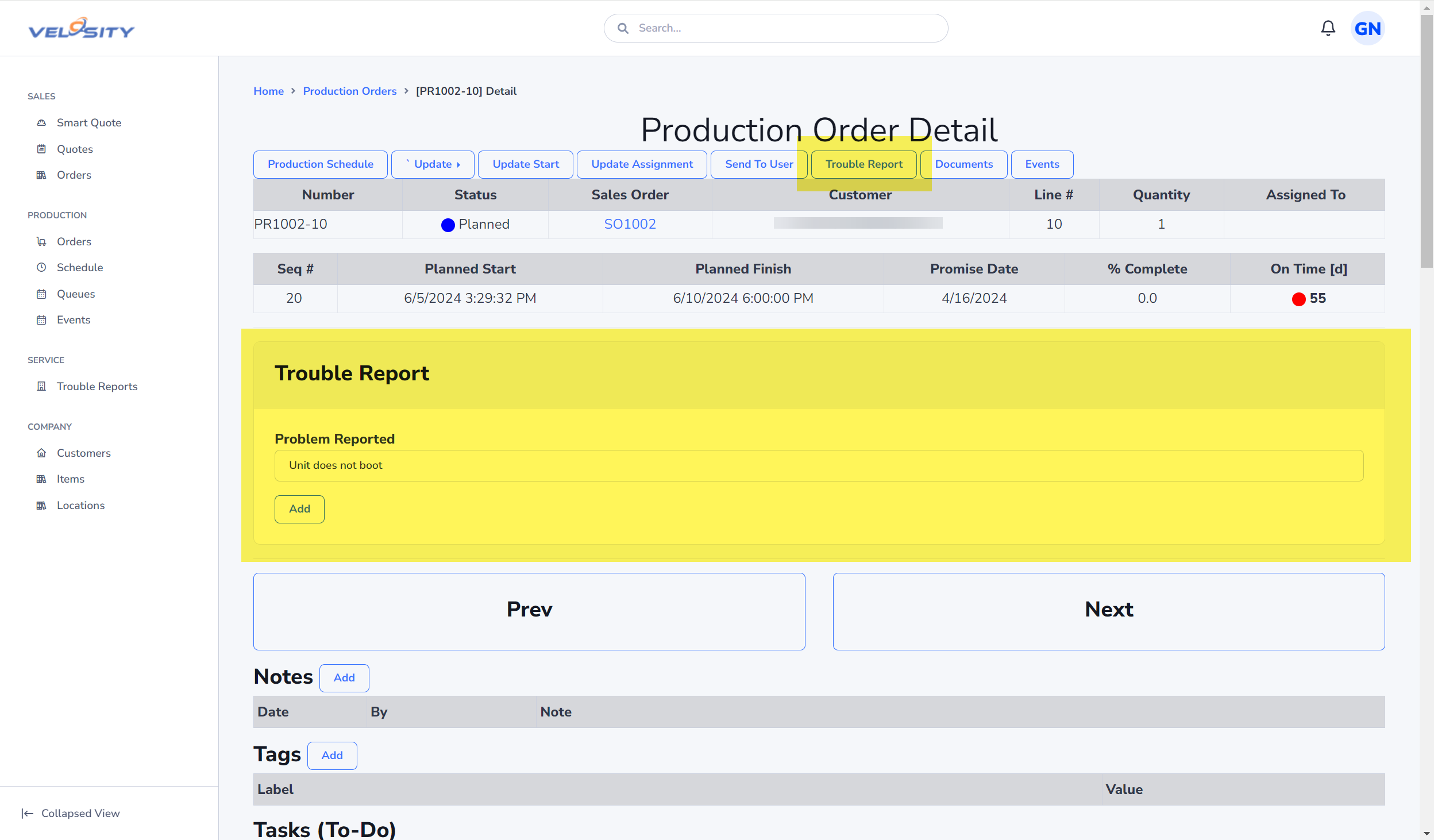
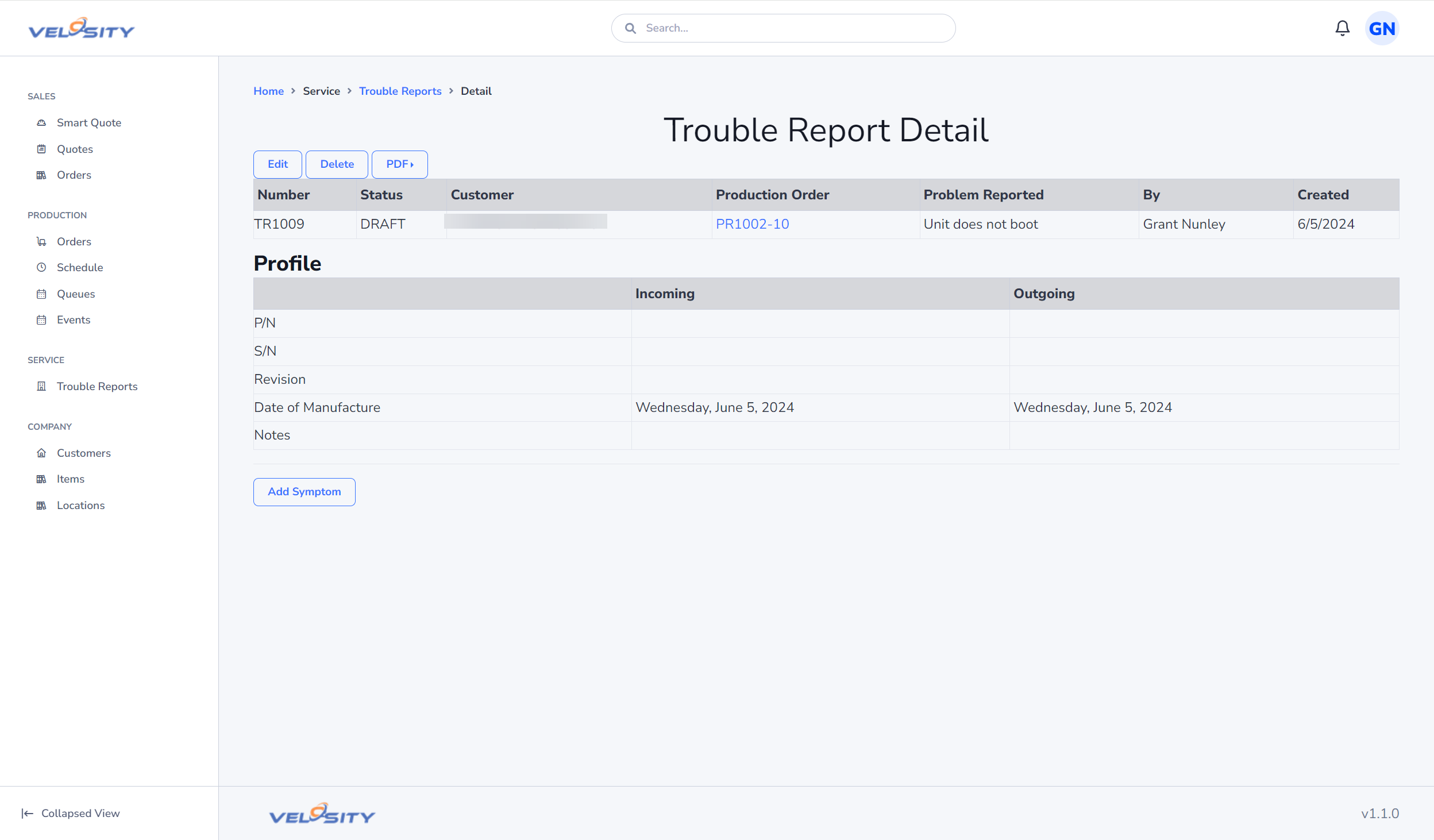
Detail
The Detail view shows the current status of a Trouble Report.
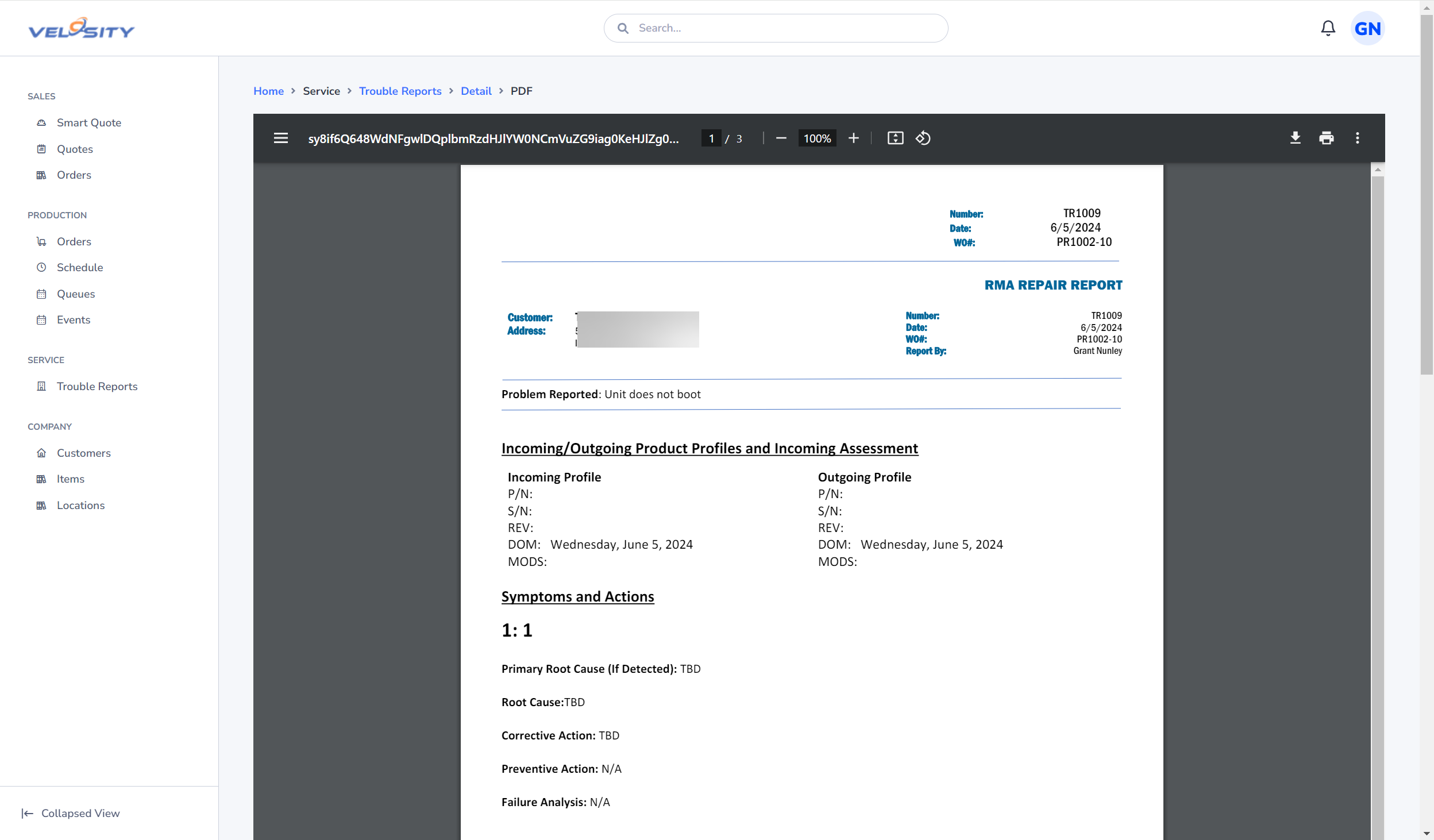
Preview
A preview of the Trouble Report (PDF from a customizable Word template) can be shown anytime. The template is managed by your Administrator(s) - contact them for any issues with the PDF.
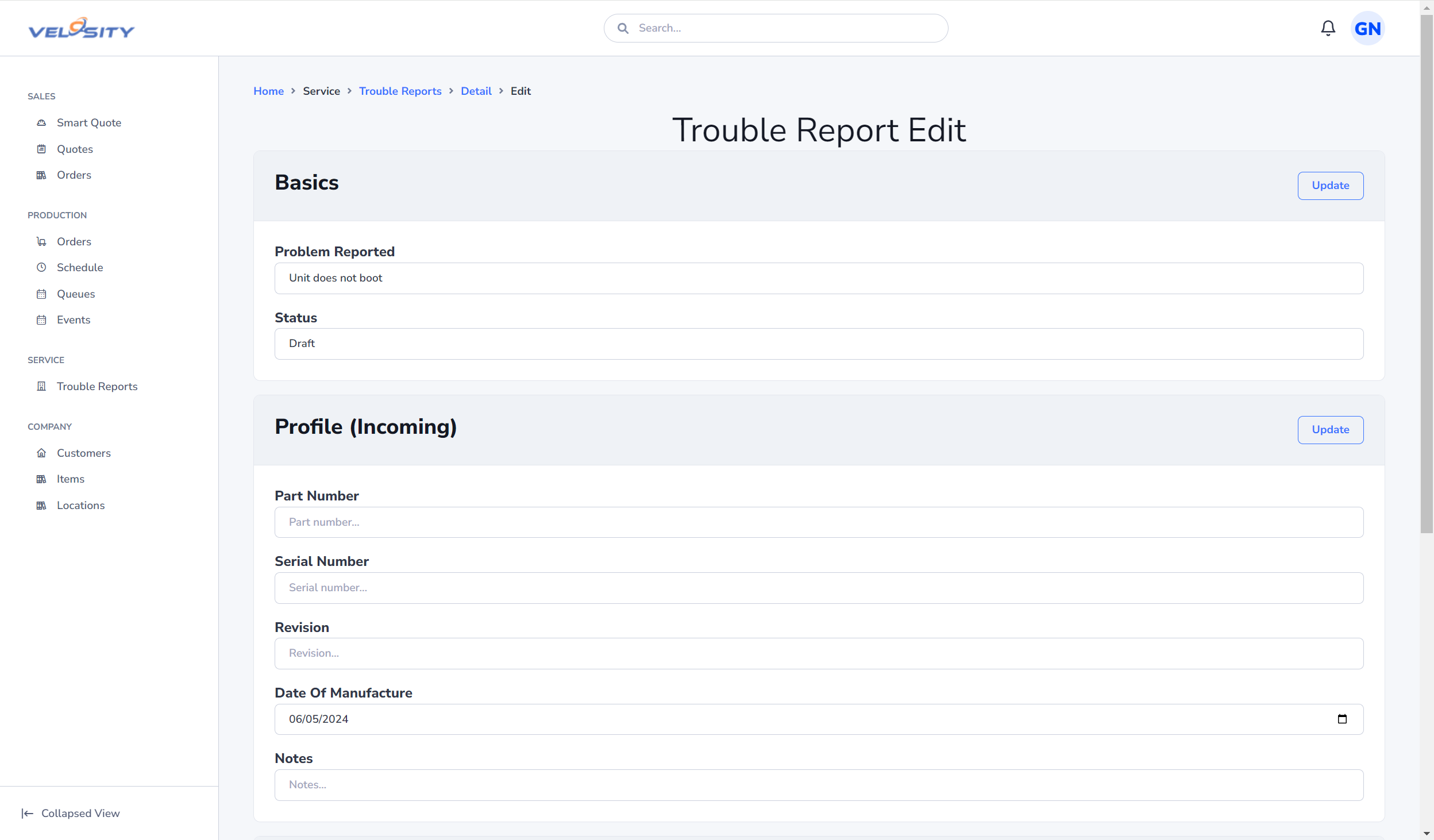
Edit
The Edit view is available as long as the Trouble Report Status is DRAFT. From this view the Trouble Report details can be refined and updated.
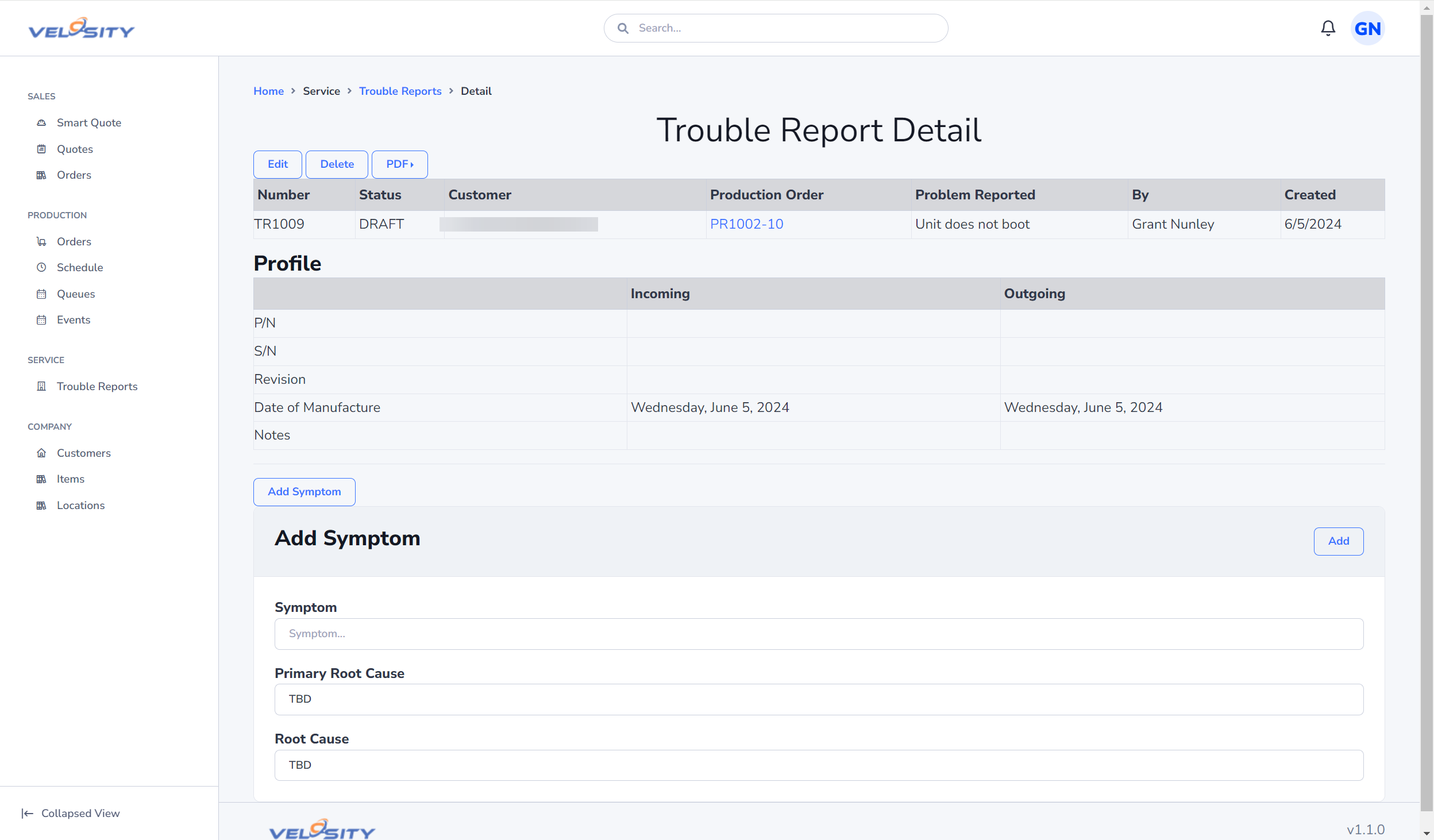
Add Symptom
The first step in refining the Trouble Report detail is to add a symptom. One or more symptoms can be added. Each symptom will have root cause and one or more repairs required to resolve the symptom.
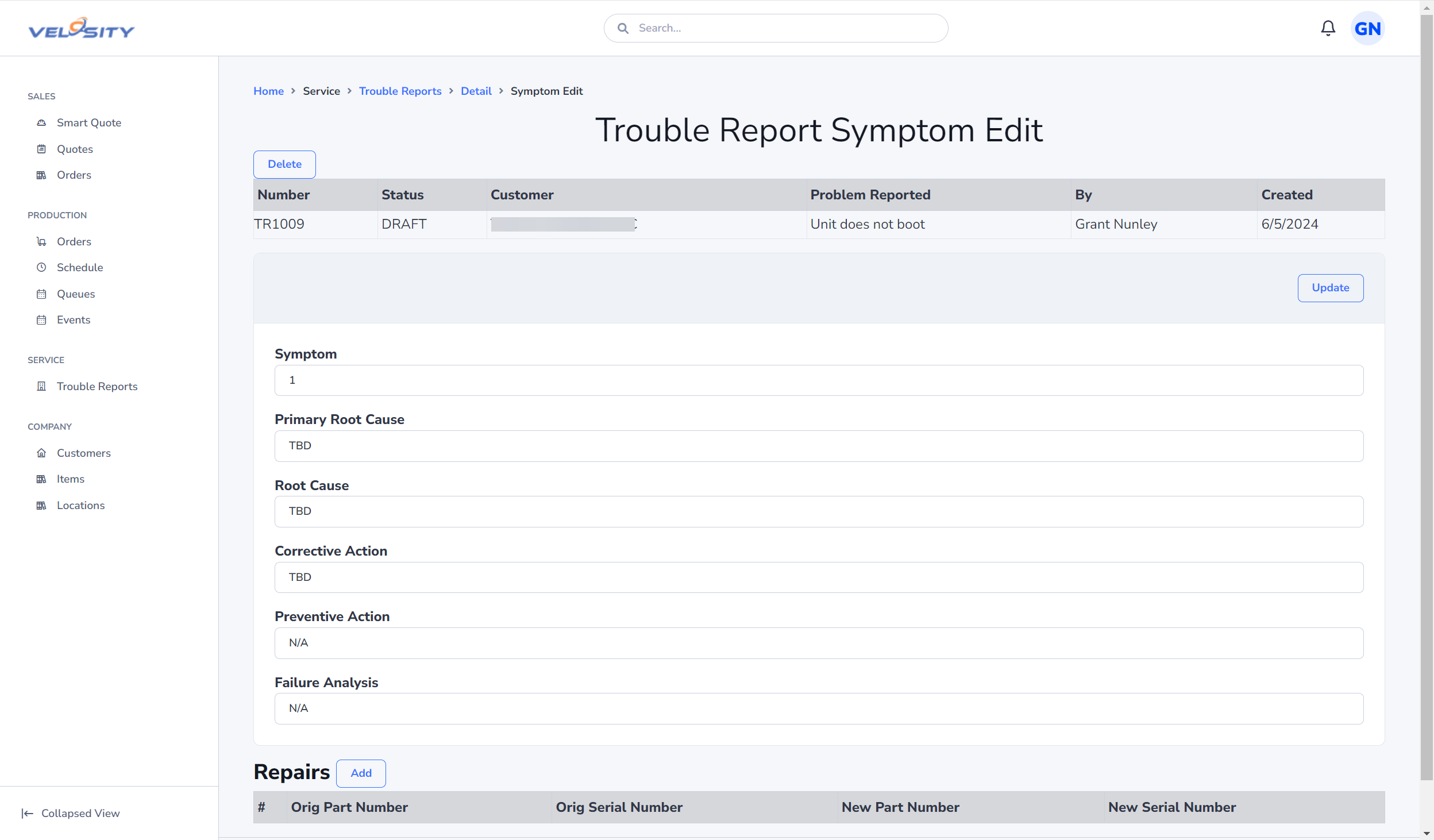
Edit Symptom
Editing a Symptom allows the updated of the root cause and corrective actions. Pre-defined codes (Symptom, Cause, Repair) can be used via Quick Add dropdowns. These pre-defined codes are managed by your Adminstrator(s).
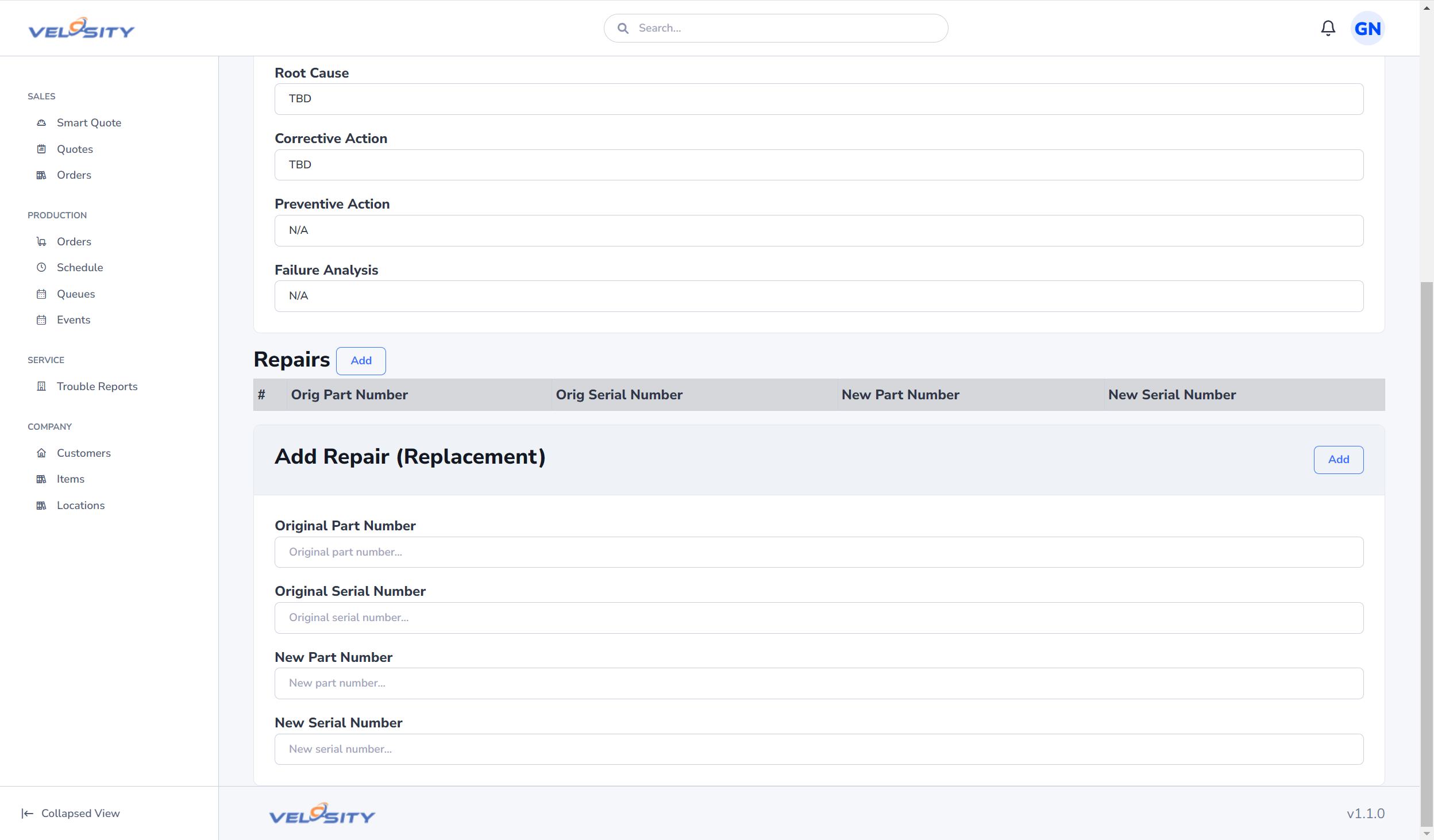
Edit Symptom - Add Repair(s)
Incidental Materials Used in a Repair
Use Incidental Materials for hardware consumed while completing a repair but which is not the primary item removed or installed by the repair itself. Typical examples are screws, washers, fasteners, and similar repair hardware.
- Open the applicable repair from the Symptom edit screen.
- In Incidental Materials, select Add Material.
- Enter the removed material details when material was removed. These fields are optional.
- Enter the installed material details. Enter the part number, quantity, vendor PO, and lot number; serial number, revision, description, UOM, and print notes may be supplied when applicable.
- Save the line. Use the edit or delete buttons to correct it while the Trouble Report remains DRAFT.
The vendor PO and lot are separate traceability fields, rather than repair notes. This preserves the repair's Repair Notes (Installed) field for notes about the primary repair item. Incidental materials become read-only when the report is FINAL.
PDF Templates: Repairs and Incidental Materials
Repairs and their incidental-material lines are repeating data. They are inserted as tables and therefore do not use individual Word placeholders such as {{TR.NUMBER}} or {{TR.REPAIRSUMMARY}}.
To choose where these tables appear in a Trouble Report PDF template, add a Word bookmark named SYMPTOMS:
- In Word, put the cursor at the desired insertion point.
- Choose Insert > Bookmark.
- Enter
SYMPTOMS, then select Add. - Upload the template as a Trouble Report document template.
When the PDF is generated, Velosity inserts the symptom detail, repair table, and an Incidental Materials table (when one or more lines were entered) at that bookmark. The table includes the repair code, removed and installed material values, quantity/UOM, vendor PO, and lot number. See Trouble Report Document Templates for the available one-value placeholders.
How-To
- From a Production (Work) Order, create a Trouble Report, entering the Problem Reported. The next time you click on Trouble Report from here, you will be taken to the Detail page.
- Update the profile of the product being serviced - Incoming: P/N, S/N, Revision level, Date of Manufacture
- Add a Symptom. Use the Quick Add if setup by your Adminstrator(s)
- Edit the Symptom. Update Root Cause(s), Correction Action(s)
- Add a Repair to the Symptom - parts removed and new installed (P/N, S/N)
- Add any incidental materials used for the repair, including vendor PO and lot number
- Repeat 3-6 as needed
- Update the Repair Summary
- Update required Tags (setup by your Adminstrator(s))
- Update Status to FINAL
When the Sales Order associated with the Trouble Report (via Production Order) is viewed as PDF, the Trouble Report is automatically merged with the Sales Order. The Trouble Report template is managed by your Adminstrator(s) - contact them for any issues with the PDF. For a full view of the cross-module data flow, see System Interoperability.