Administration - Document Templates
Velosity uses a Microsoft Word (.docx) template for Sales Quotes, Sales Orders and Packing Lists. The easiest way to customize is to start with a document you already have with desired layout, logo, etc. The next step is to replace static text with placeholders that should be replaced with real data when the Word template is converted to PDF. The placeholder names are different for each document type.
Trouble Reports
Multiple templates are permitted. Users can select which template to use when viewing the PDF. When a PDF is generated, it is named using the following format: TroubleReport_{TR.NUMBER}.pdf.
Below left shows a template with placeholders and on the right what it looks like when generated to PDF. Note each of the placeholders were replaced with actual data from the various entities (Sales Order, Production Order, Trouble Report).
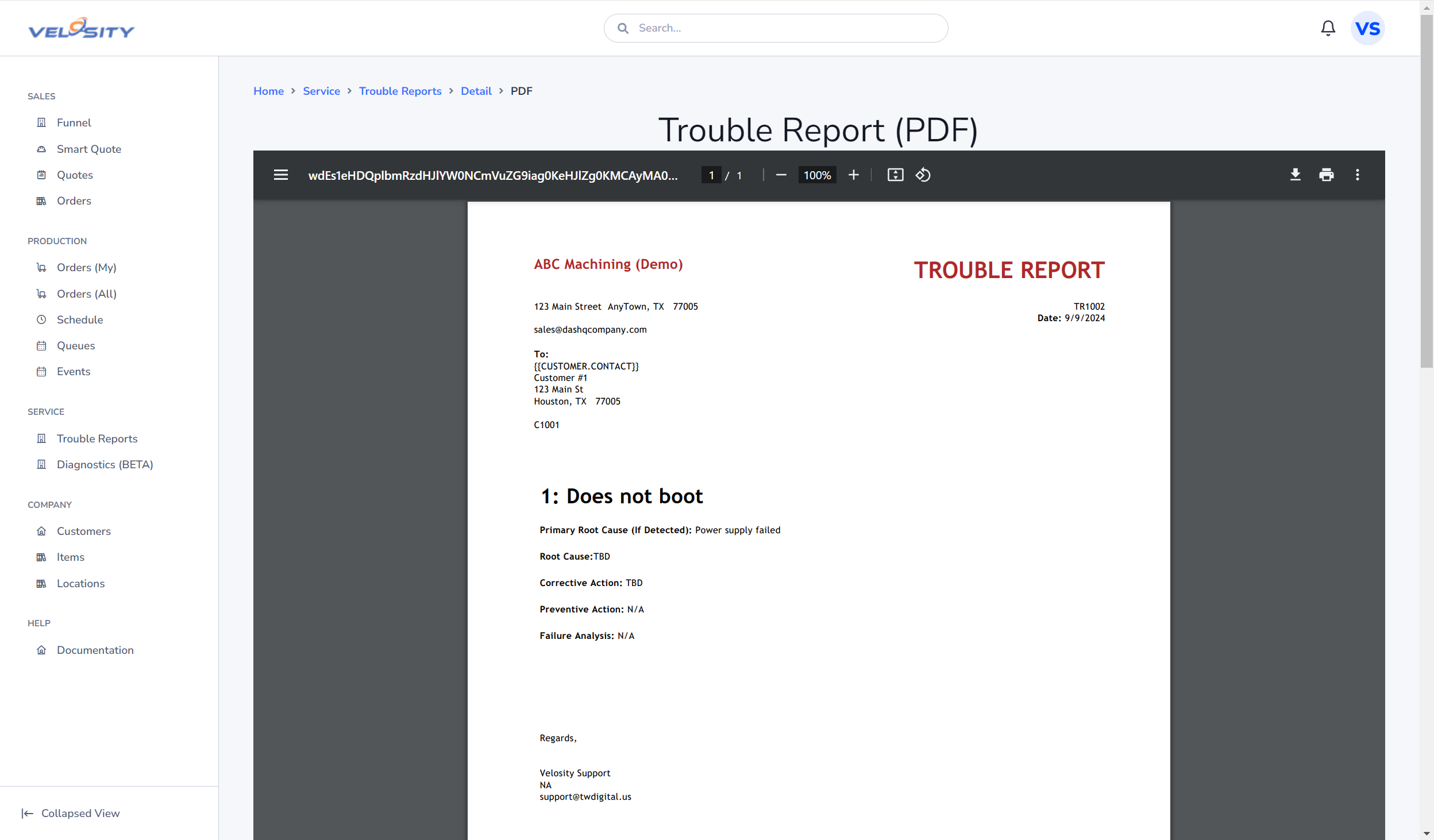
To include the repeating symptom, repair, and incidental-material detail, create a SYMPTOMS bookmark at the desired place in your Trouble Report template:
-
Place the cursor where you would like the symptom and repair detail to appear
-
Select Insert, Bookmark
-
Enter SYMPTOMS for the Bookmark name
-
Click Add
The bookmark will appear as an "I-beam" symbol in the document.
Velosity inserts the symptom detail and corrective-action repair table at this bookmark. When a repair has incidental materials, it also inserts a material traceability table showing the repair code; removed and installed material information; quantity/UOM; vendor PO; and lot number.
There are no individual {{...}} placeholders for repair or incidental-material fields because both are repeating tables. Use the SYMPTOMS bookmark instead. The placeholders below are for one-value fields such as the report number and repair summary.
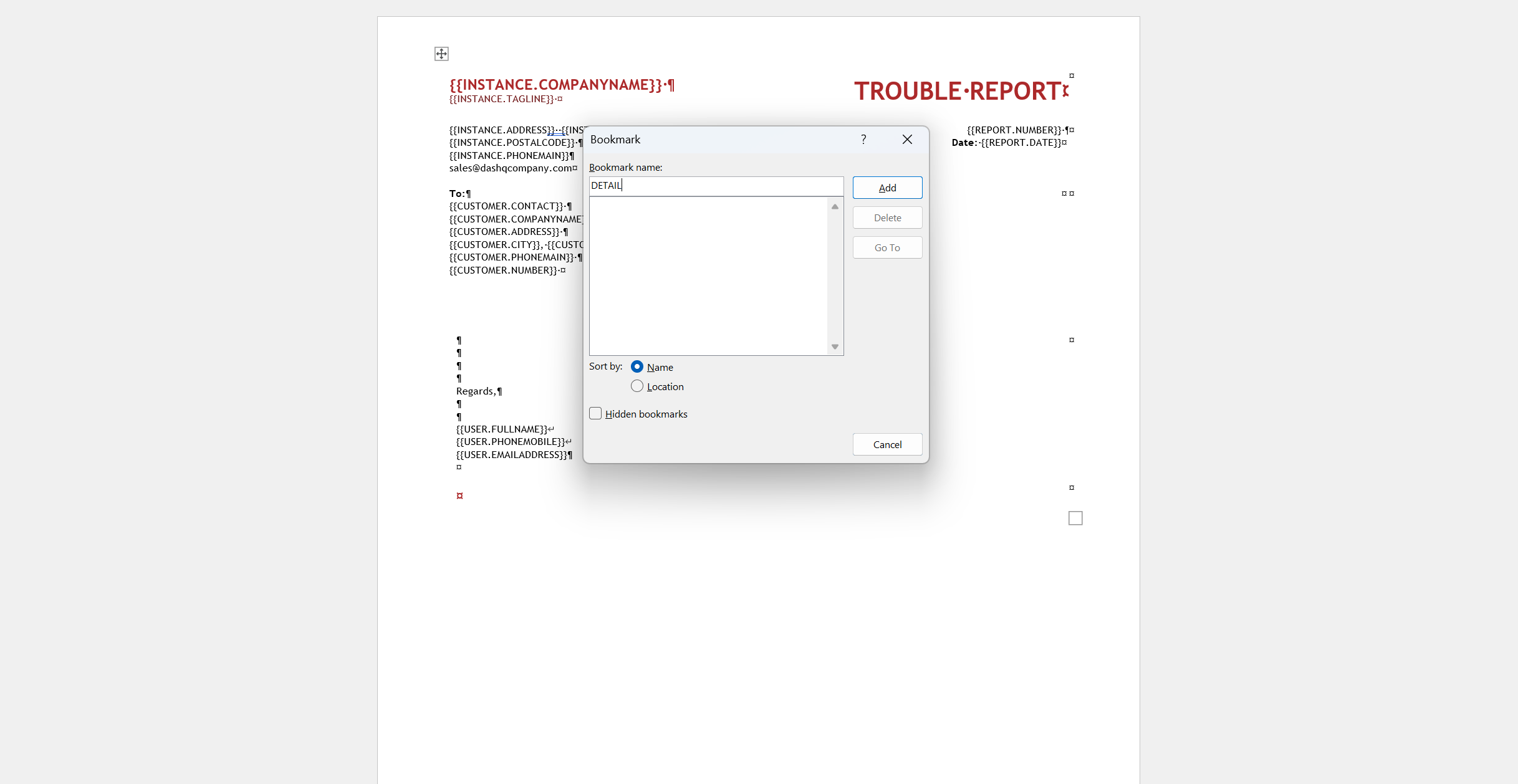
The list of Trouble Report placeholders is shown in the Velosity application once a template of a certain type is uploaded:
Your Company (Velosity Environment)
-
{{I.FULLADDRESS}}
-
{{I.COMPANYNAME}}
-
{{I.ADDRESS}}
-
{{I.CITY}}
-
{{I.STATE}}
-
{{I.POSTALCODE}}
-
{{I.PHONEMAIN}}
-
{{I.WEBSITE}}
-
{{I.PAYMENTTERMS}}
Customer (C)
- {{C.NUMBER}}
- {{C.NAME}}
- {{C.COMPANYNAME}}
- {{C.ADDRESS}}
- {{C.CITY}}
- {{C.STATE}}
- {{C.POSTALCODE}}
- {{C.PHONEMAIN}}
Customer Contacts (On Sales Order) (C)
- {{C.CONTACT.FIRST}}
- {{C.CONTACT.LAST}}
- {{C.CONTACT.FULLNAME}}
- {{C.CONTACT.EMAIL}}
- {{C.CONTACT.PHONE}}
- {{C.CONTACT.MOBILE}}
User Viewing the Trouble Report PDF (U)
- {{U.FULLNAME}}
- {{U.FIRST}}
- {{U.LAST}}
- {{U.TITLE}}
- {{U.PHONEMOBILE}}
- {{U.PHONEOFFICE}} or {{U.PHONE}}
- {{U.EMAILADDRESS}} or {{U.EMAIL}}
- {{U.LASTUPDATED}}
Trouble Report
-
{{TR.NUMBER}}
-
{{TR.DATE}}
-
{{TR.CREATEDBY}}
-
{{TR.LASTUPDATEDBY}}
-
{{TR.PROBLEMREPORTED}}
-
{{TR.PROBLEMREPORTED.DETAIL}}
-
{{TR.REPAIRSUMMARY}}
-
{{TR.TAGS.TagName}}
Trouble Report - Profile (Incoming)
-
{{INCOMING.PARTNUMBER}}
-
{{INCOMING.SERIALNUMBER}}
-
{{INCOMING.REVISION}}
-
{{INCOMING.DATEOFMANUFACTURE}}
-
{{INCOMING.NOTES}}
Trouble Report - Profile (Outgoing)
-
{{OUTGOING.PARTNUMBER}}
-
{{OUTGOING.SERIALNUMBER}}
-
{{OUTGOING.REVISION}}
-
{{OUTGOING.DATEOFMANUFACTURE}}
-
{{OUTGOING.NOTES}}
Sales Order associated (linked) with Trouble Report
-
{{SO.NUMBER}}
-
{{SO.PONUMBER}}
-
{{SO.TAGS.TagName}}
Sales Order LineItem associated (linked) with the Production Order (linked to Trouble Report)
-
{{LINE.ATTRIBUTES.AttributeName}}
-
{{LINE.QUANTITY}}
Production (Work) Order associated (linked) with Trouble Report
-
{{PR.NUMBER}}
-
{{PR.NOTES}}