Production - Order Tasks
Detail
Open the material request
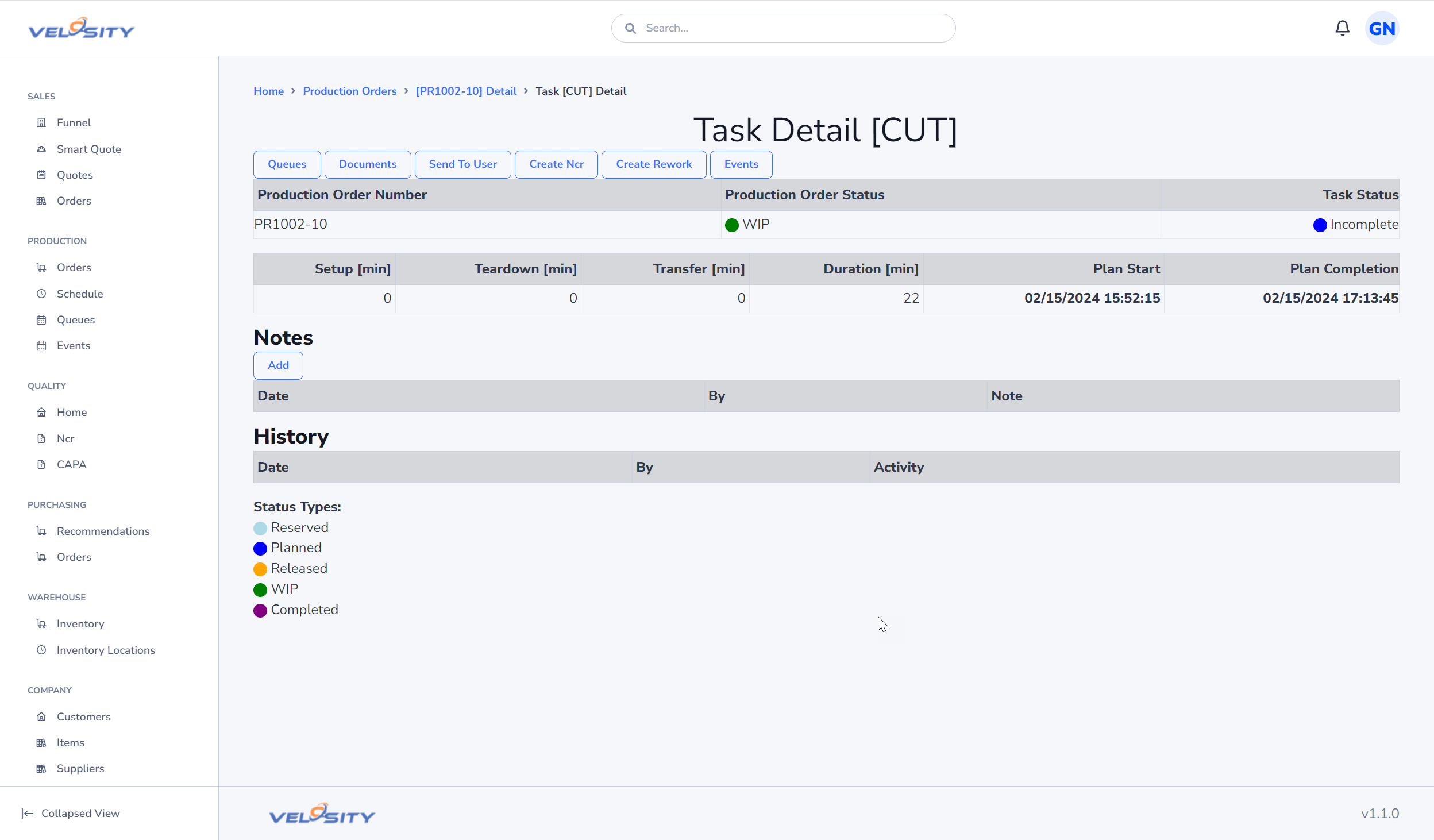
Select Materials on Task Detail to open the material request associated with the current Production Order or Repair Order. Velosity opens the matching request directly, without requiring you to search the Materials queue.
See Material Requests for instructions on requesting and returning parts.
Documents
Send to User
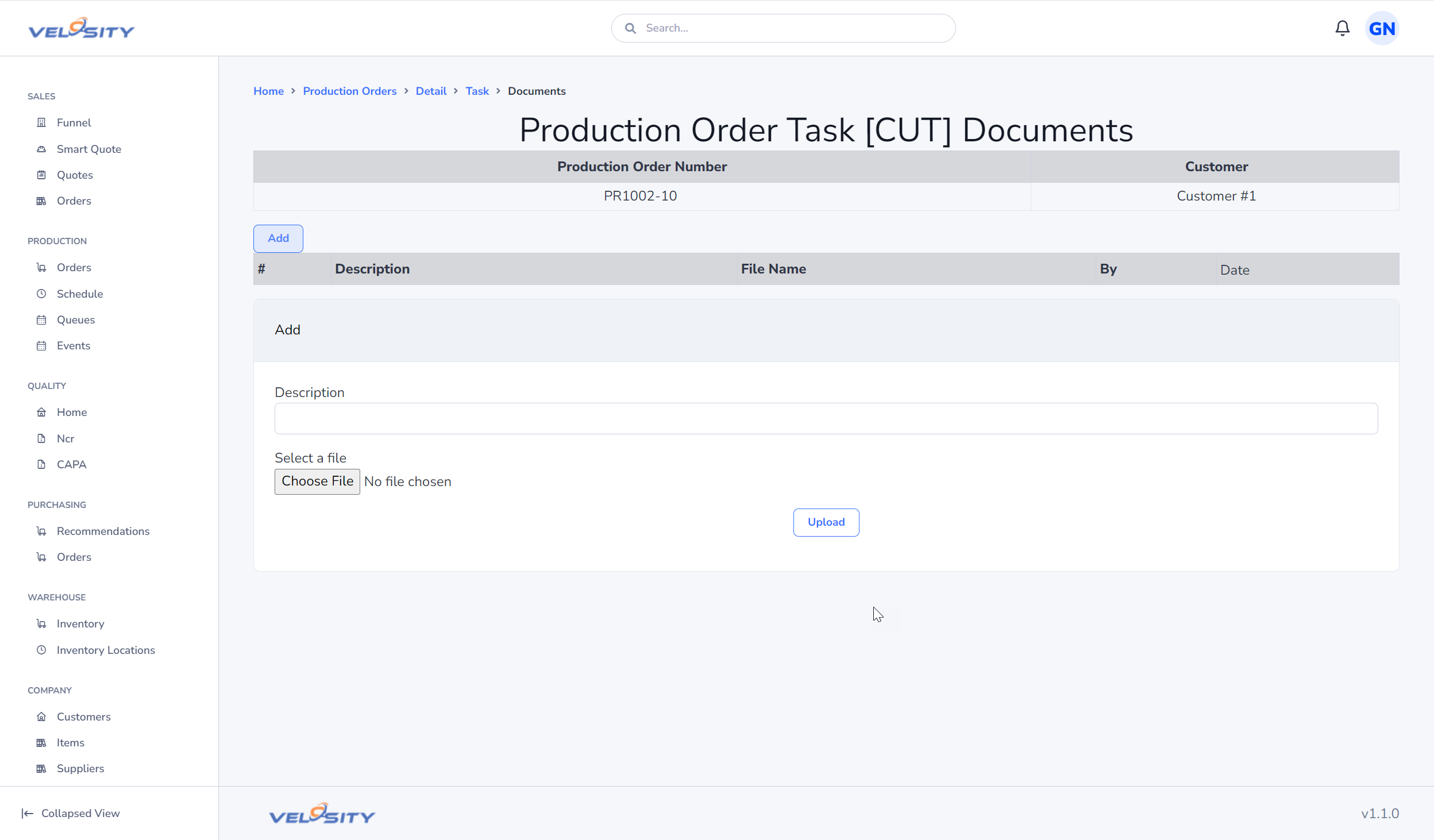
The Send To User button allows you to send this quote as a message to another Velosity user. The recipient's view of Velosity will have a different Notification bell at the top right of the window.
Update Status
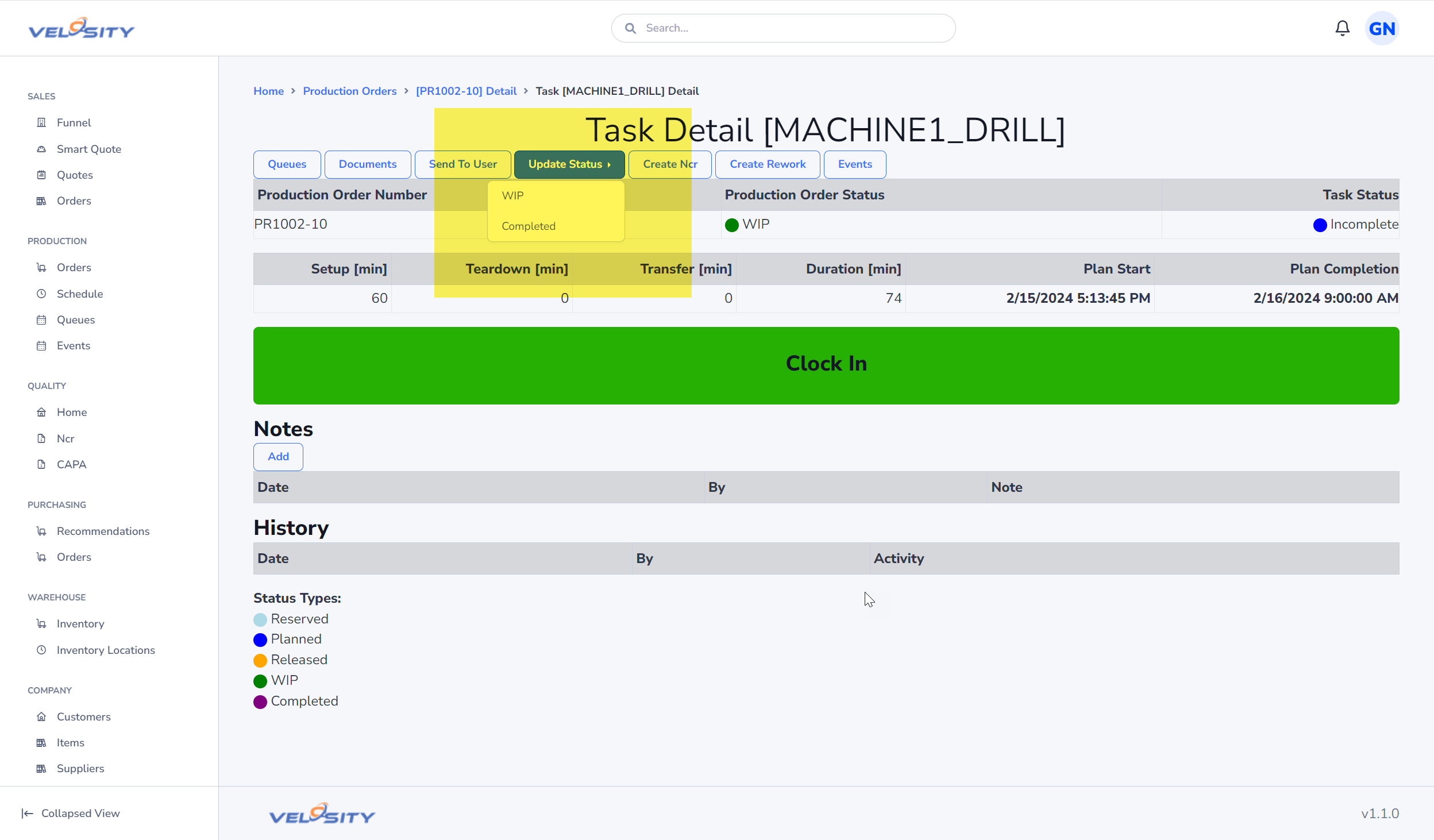
Reopen a completed task
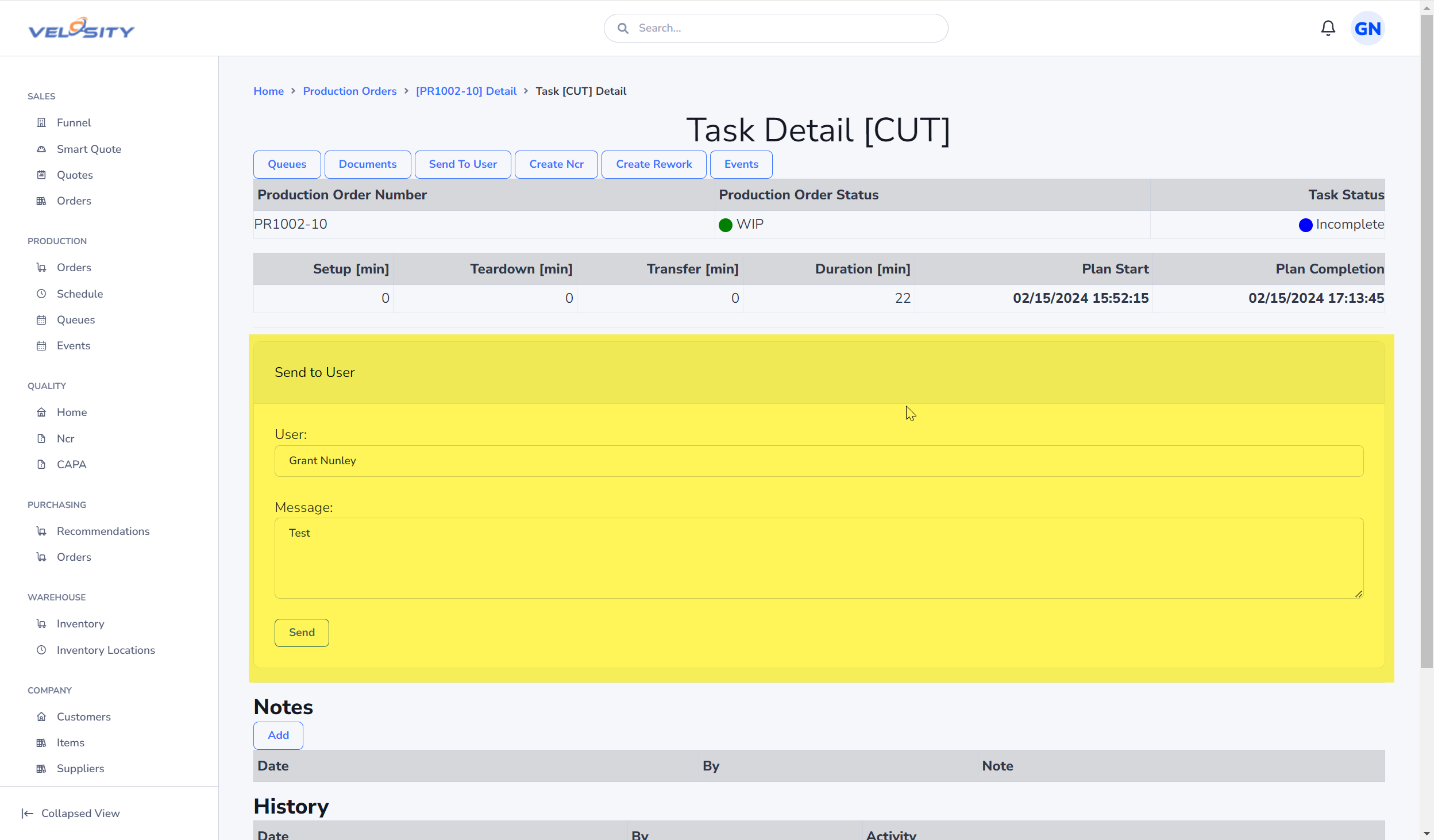
Completed tasks cannot be changed back to WIP or Incomplete through the normal status control. This protects completed work from stale pages, saved links, and accidental status changes.
An administrator or technician can deliberately reopen a completed task:
- Open the completed task's Task Detail view.
- Select Reopen Task.
- Choose Incomplete or WIP.
- Enter the reason the task must be reopened.
- Select Confirm Reopen.
The same user can request and confirm the reopen; a second approver is not required. Velosity records the previous and new status, reason, user, and time in task history.
Reopening a task does not clock the user in or create a production-time entry. If additional work will be performed, start work separately after reviewing the router. Velosity warns when a later task is already WIP or completed because reopening may require the remaining task sequence to be reviewed.
Production Time Capture
Production duration is captured automatically. Moving an eligible Production Order Task to WIP can start a time-ledger interval. The task must be current and in sequence; viewing it does not affect recorded duration.
The CPQ application asks the timekeeping API to switch tasks when an eligible task is moved to WIP. That is the intentional signal that work has begun. The system closes the user's existing open interval, then creates one for the WIP task. Reapplying WIP to the same task does not create another interval.
Task Detail, document access, document deletion, notes, and sending a task to another user are read-only from a timekeeping perspective. They do not start, stop, or switch time.
An end-of-shift safety job closes an open interval at the linked Resource's configured shift end. If no active Resource/workday is linked to the user, the system leaves the interval open and exposes it in Time Exceptions rather than guessing a finish time.
Important current behavior
- A user can have only one open Production Order Task interval at a time.
- Time capture does not use the role selected in the menu. A transition to WIP is the automatic work signal.
- A Resource or Resource Group link does not gate time capture. Those links are used for scheduling, capacity, and assignment. A linked active Resource does additionally provide the workday used by shift-end closure.
- The CPQ switch call excludes ADMIN and superuser accounts, but does not otherwise require SHOP or TECH. Viewing a task is safe; a non-ADMIN account that intentionally moves an eligible task to WIP can start or switch its interval.
- Completing the task closes the matching open interval.
Task Detail and document viewing are read-only from a timekeeping perspective. Use the task status controls only to represent real work progress.
Data quality and reporting
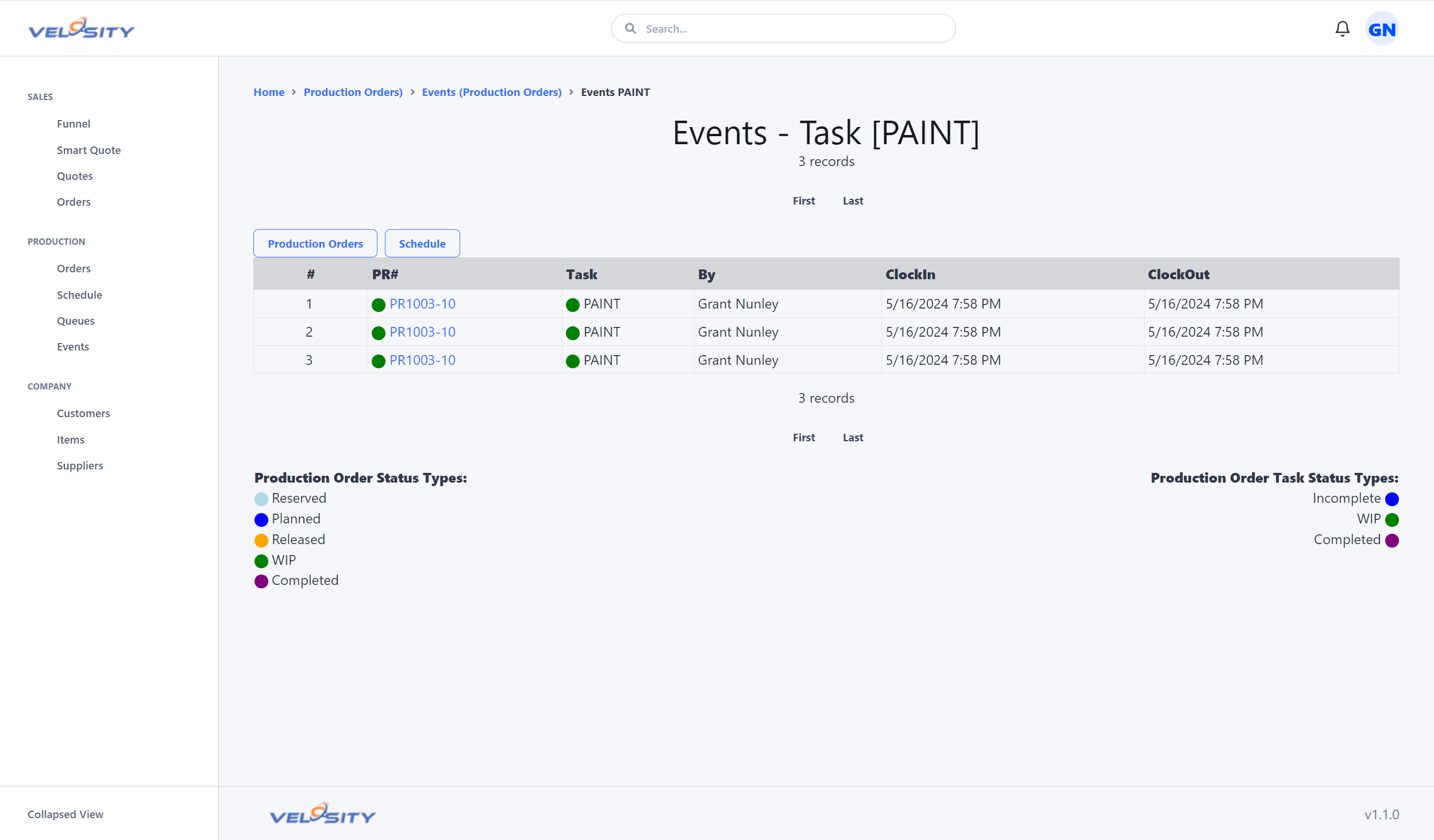
The time ledger records work intervals; task Actual Start and Actual Finish describe lifecycle/lead time and must not be treated as task duration. Router analysis should use only validated ledger intervals. Open, inverted, overlapping, malformed, or excessively long intervals must be flagged and excluded from plan-vs-actual comparisons until reviewed.
See Events for review and correction guidance.
Events
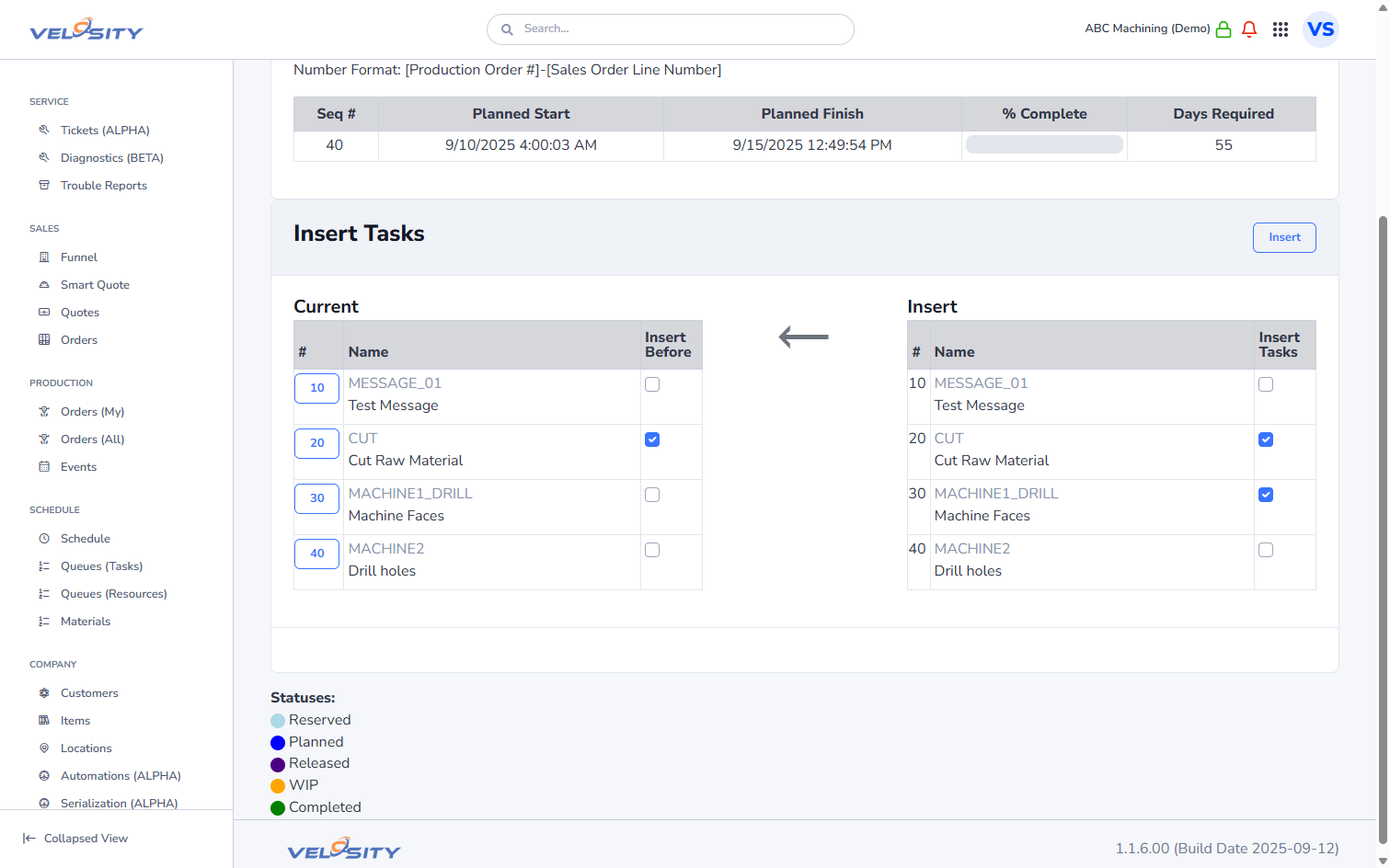
Insert
This feature enables you to insert Tasks at a specified location in the router. This can be useful in cases where something different needs to be done that was not accounted for in the Smart Quote setup. Click here to learn more.