User and Account Administration
Managing user access is a primary responsibility for any Velosity ADMIN. This section allows you to control who can access the system, what data they can see, and what actions they are authorized to perform.
Managing User Accounts
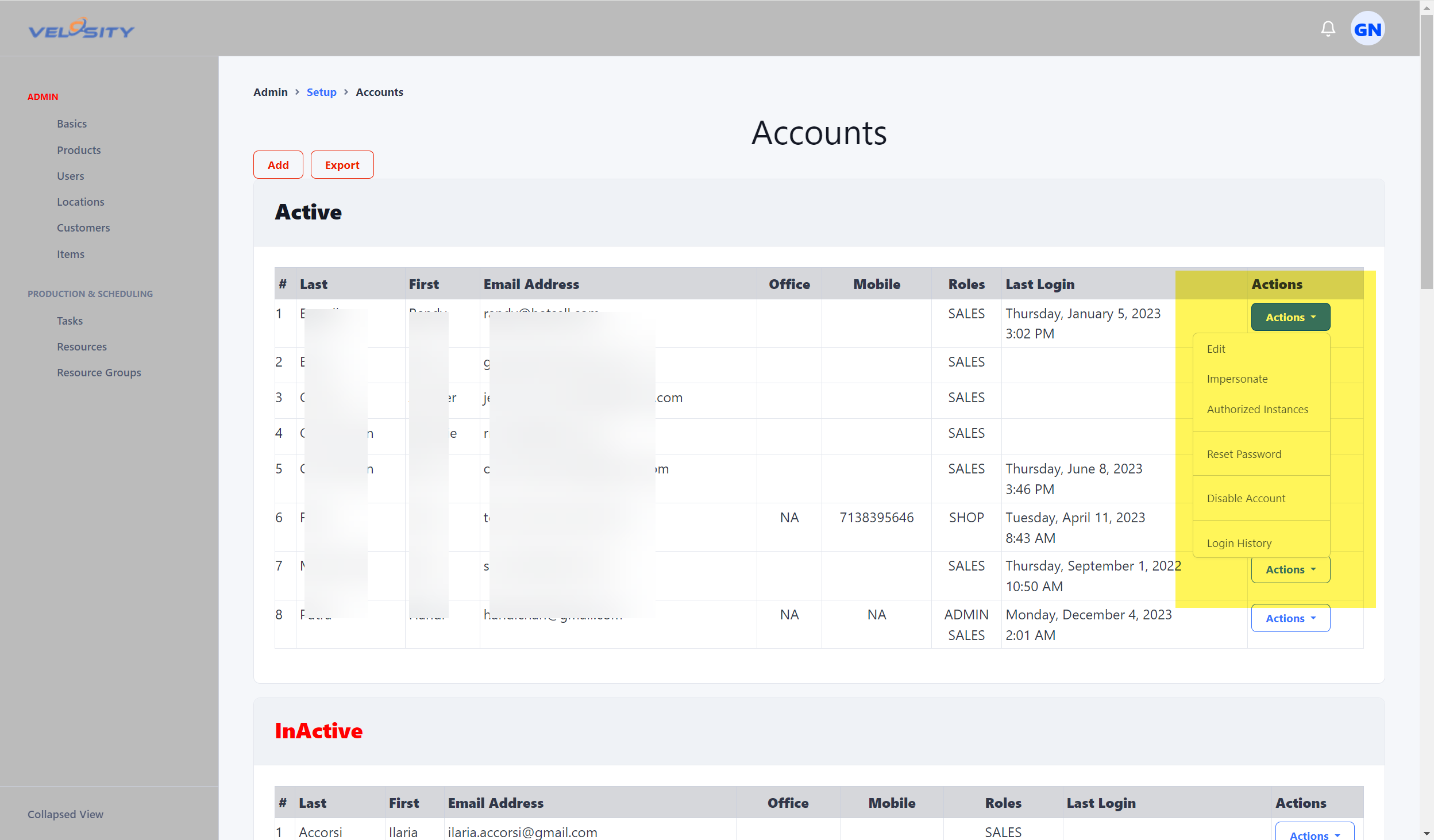
The Accounts interface provides a centralized dashboard for all registered users. From here, you can perform several critical administrative tasks:
- Reset Passwords: Securely reset a user's password if they are locked out.
- Deactivate Users: Revoke access for employees who have left the organization or no longer require system access. Disabling an account marks it inactive; it does not delete the account or its history. Inactive accounts appear in the Inactive accounts list and can be enabled again.
- Update Email Addresses: ADMIN and SUPPORT users can update a user's email address from Account Edit. The new address is validated before the account is updated.
- Sync Status: View if the user's account is correctly linked to your organization's Single Sign-On (SSO) or identity provider.
Roles and Permissions
Velosity uses role-based access control. When you add or edit a user, assign one or more roles based on the work that person performs. Features, organization settings, and record status can further limit an action even when a role normally allows it.
See Roles and Permissions for every role in the Accounts picker and the specific operational access granted to POWERUSER.
Linking Users to Resources
For accurate scheduling, link a shop-floor user account to a specific Resource. The link does not enable or gate production-duration capture. It allows the system to: 1. Use that Resource's working hours for the end-of-shift automatic interval closure. 2. Account for the user's Non-Working Days in the production schedule.
Production-duration capture is driven by moving an eligible production task to WIP, not by the role selected in the menu or by Resource Group membership. See Production Time Capture.
User Types
Velosity distinguishes between two types of user accounts:
- Standard Users: Accounts used by employees to log in and interact with the system.
- System Users: Special accounts used for automation, API integrations, or scheduled tasks. System users are typically excluded from standard billing metrics and cannot be used for interactive login.
Adding a New User
- Navigate to Administration → Accounts.
- Enter the user's professional email, name, and initial role assignments, then save the account.
- Provide the user's professional email, display name, and initial role assignments.
- The user will receive an automated invitation to set their password and complete their Account Profile.