Production Time Capture
Velosity automatically captures production-task duration to compare actual router performance with planned task time. This data is used to refine router estimates; it is not a payroll or labor-charging clock.
How it works
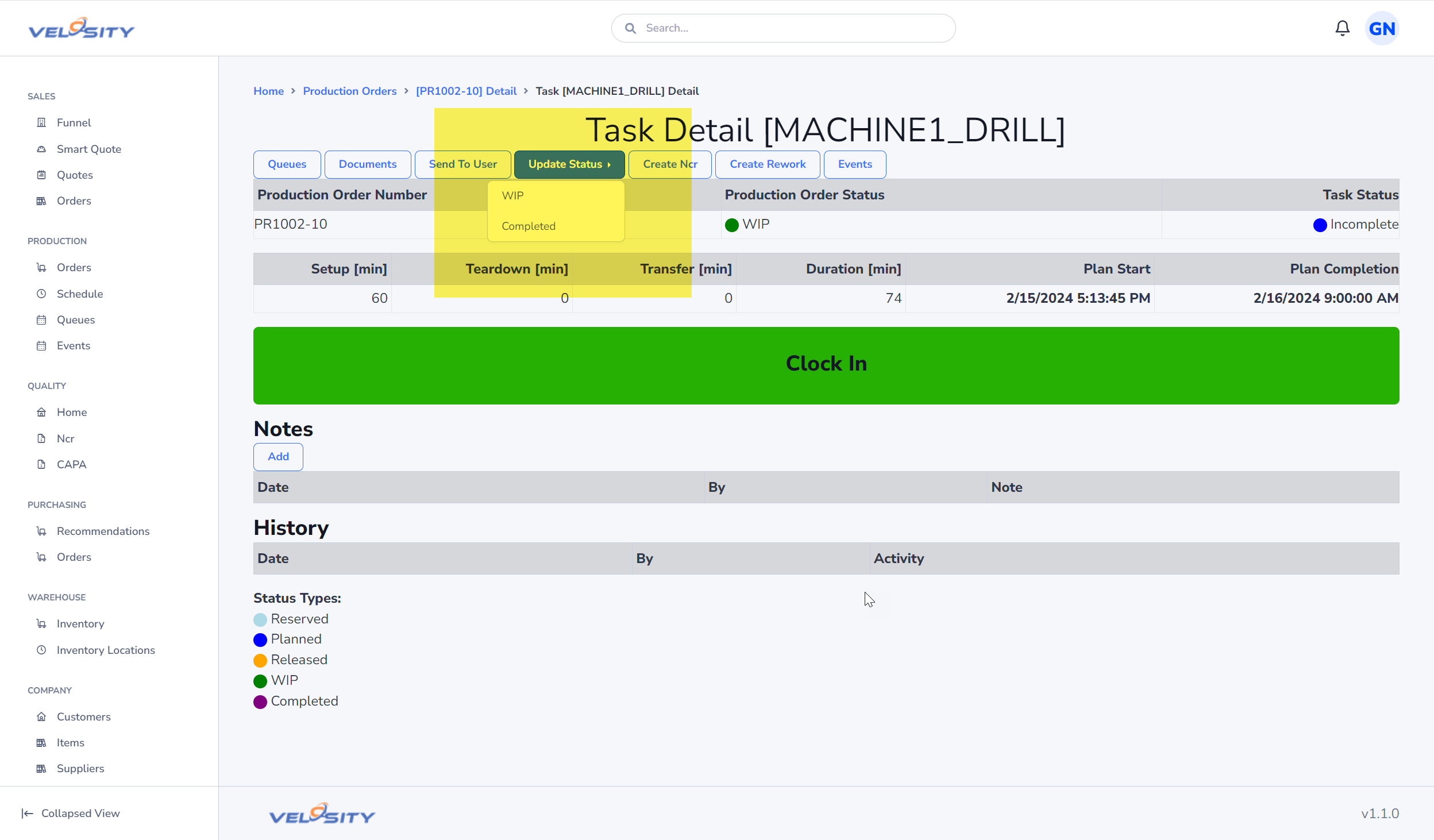
There is no clock-in or clock-out action for production users. When an eligible task moves to WIP, Velosity records the signed-in user's active production task. Viewing tasks, documents, and notes is safe and does not affect recorded duration.
Automatic work-context changes
- Moving a task to WIP: The system starts an interval, or closes the user's prior active interval and starts this one.
Opening Task Detail, viewing or deleting documents, adding notes, and sending a task to another user do not start, stop, or switch recorded duration.
Automatic interval closure
A user has one active Production Order Task interval at a time. Completing a task closes its matching open intervals.
An end-of-shift job runs regularly. For a user linked to an active Resource with configured working hours, it closes an open interval at that Resource's scheduled shift end and records AUTO_CLOCK_OUT_SHIFT_END. An interval without a linked, scheduled Resource is not assigned a guessed end time; it remains an exception for review.
Roles and Resources
The role currently selected from the menu is not the time-capture signal. A Resource or Resource Group link does not decide whether a WIP transition creates a ledger event; Resource configuration is used for scheduling and, when a user is linked to an active Resource, for shift-end closure.
Task and document review does not change time for any account. ADMIN and superuser accounts remain excluded from the automatic switch path.
Reporting Issues from the Floor
When production doesn't go according to plan, capturing the reason is vital for continuous improvement.
- Be Specific with Notes: Use the Notes feature to describe roadblocks. Instead of "Problem," write "Drill bit snapped on step 3 - replacing now."
- Log Events: Use the Events tab to log specific downtime, quality issues, or machine maintenance. This data helps planners understand why a job might be running behind schedule.
- Handle Rework with Insert Task: If a part needs an unexpected extra step (like additional de-burring or a repeat wash), use the Insert feature to add a temporary task to the router. This ensures the extra labor and time are captured.
Why Time Accuracy Matters
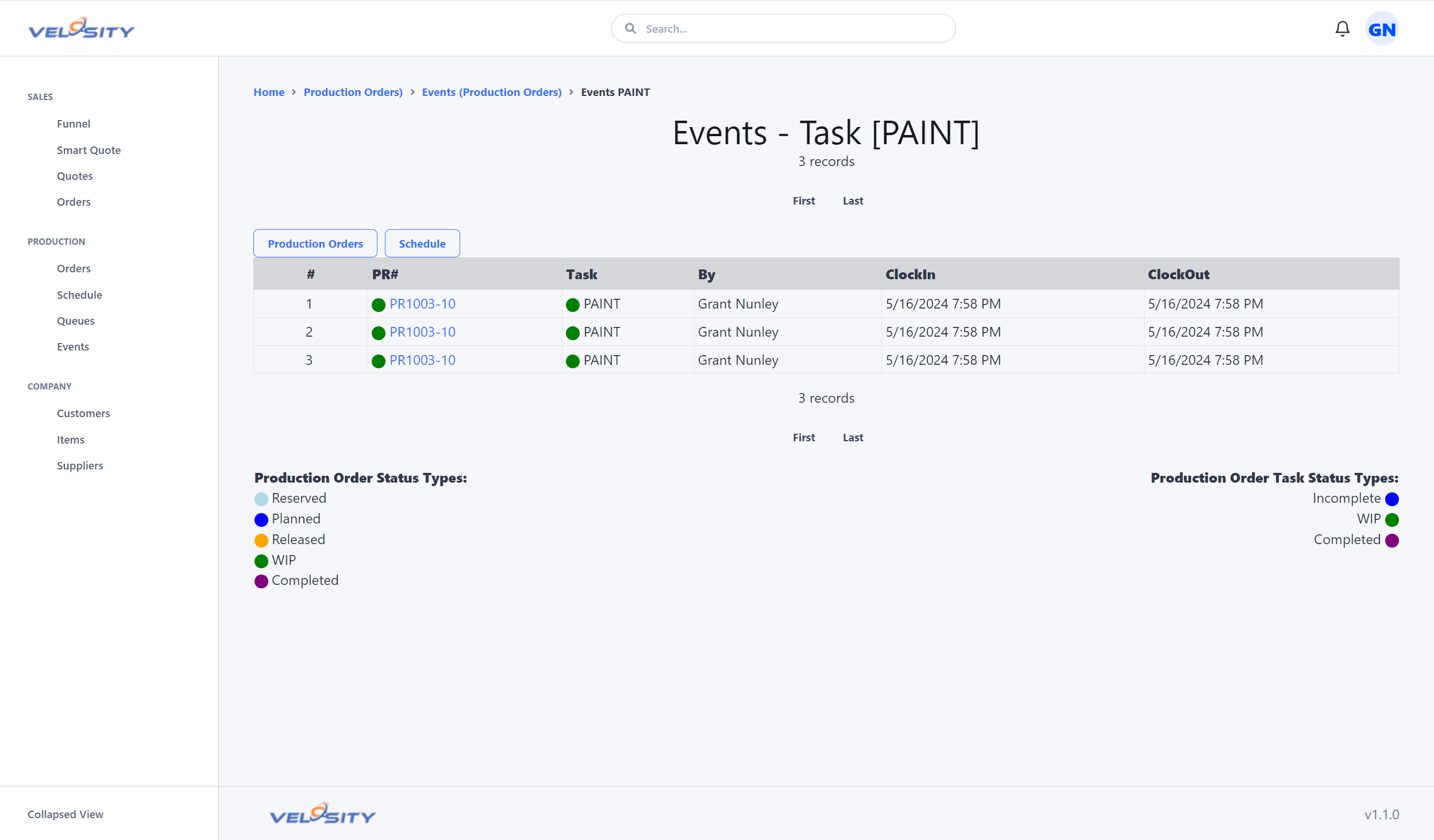
The time you spend clocked into a task is logged as an Event.
- Router Accuracy: Validated events compare actual task duration with planned router time; they are not used to charge labor.
- Better Quoting: Historical duration patterns help administrators refine router step estimates for future quotes.
- Visibility: It allows managers to see "Who is working on what" in real-time without having to walk the floor.
Data review
The system flags intervals that have no reliable finish, overlap another interval, or have implausible timing. Review these in Time Exceptions before using them for router analysis.
Supervisors and historical cleanup
Use the Events list and invalid-time worklist to investigate questionable intervals. Do not correct old records by direct database edits. A proper ADMIN correction process should retain original values, require a reason, record who changed what and when, and trigger recalculation of affected labor/profitability results.